Add your signature to a Word document.
Guide by FreeSignature · Updated October 9, 2026
Open the free editor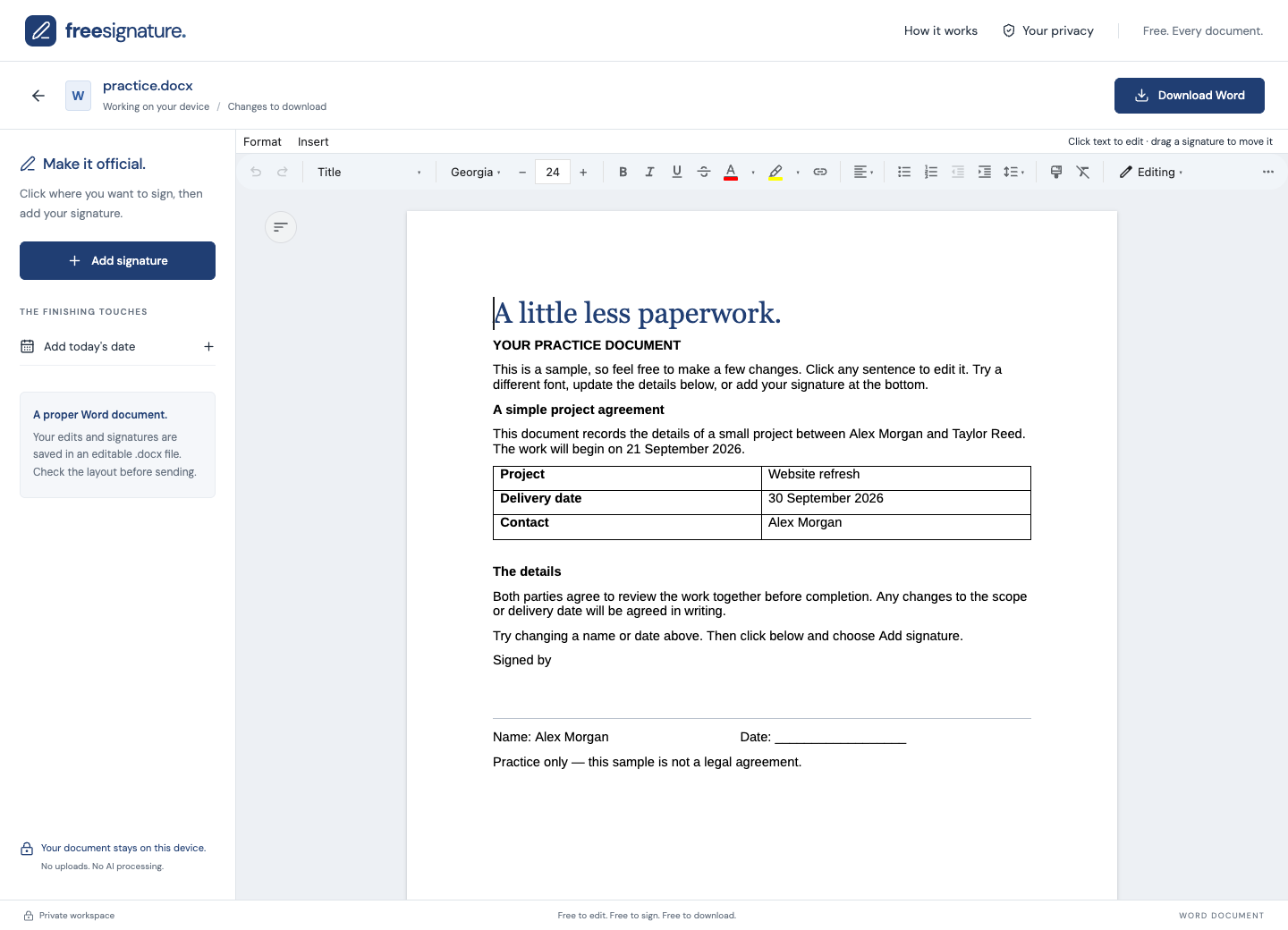
A visible signature, inside your DOCX file
FreeSignature lets you edit a Word document and place a handwritten-style signature in the same browser editor. Draw your signature, type one, or upload an image of a signature you have permission to use. The downloaded file remains an editable Word document.
How to sign a Word document
- Open the editor and choose a .docx file up to 25 MB.
- Make any text or formatting changes before placing your signature.
- Open the signature tool and draw, type, or upload a PNG, JPEG or WebP image.
- Place the signature, then move and resize it to fit. Reuse it for other signature spaces.
- Download the signed .docx copy and check its layout before sending it.
Can I change or move the signature?
Yes. You can move, resize, replace and reuse signatures while working on the document. Because the exported DOCX stays editable, its visible signature is not a tamper-proof seal.
Does it verify who signed?
No. FreeSignature places visible signatures. It does not verify identity, create certificate-based digital signatures, or provide a signing audit trail. Check the recipient’s signing requirements before using it.
Try a small edit before using your own file.
Download the practice DOCX and open it in the editor. Change “Website refresh” in the table to “Website review”, update the delivery date, then click below “Signed by” and choose Add signature. Download Word and reopen your copy to check the change.
Download the practice Word documentFictional details only. A practice file, not a legal template. You can also choose “Try a sample document” inside the editor.
No account. No watermark. Review your downloaded copy before sharing.